Use Shopify’s current customer accounts; legacy accounts are unsupported. Add the Rewards page and menu link.
Add the page
- In Shopify Admin, open Settings → Checkout.
- Under Configurations, customize your customer-account configuration.
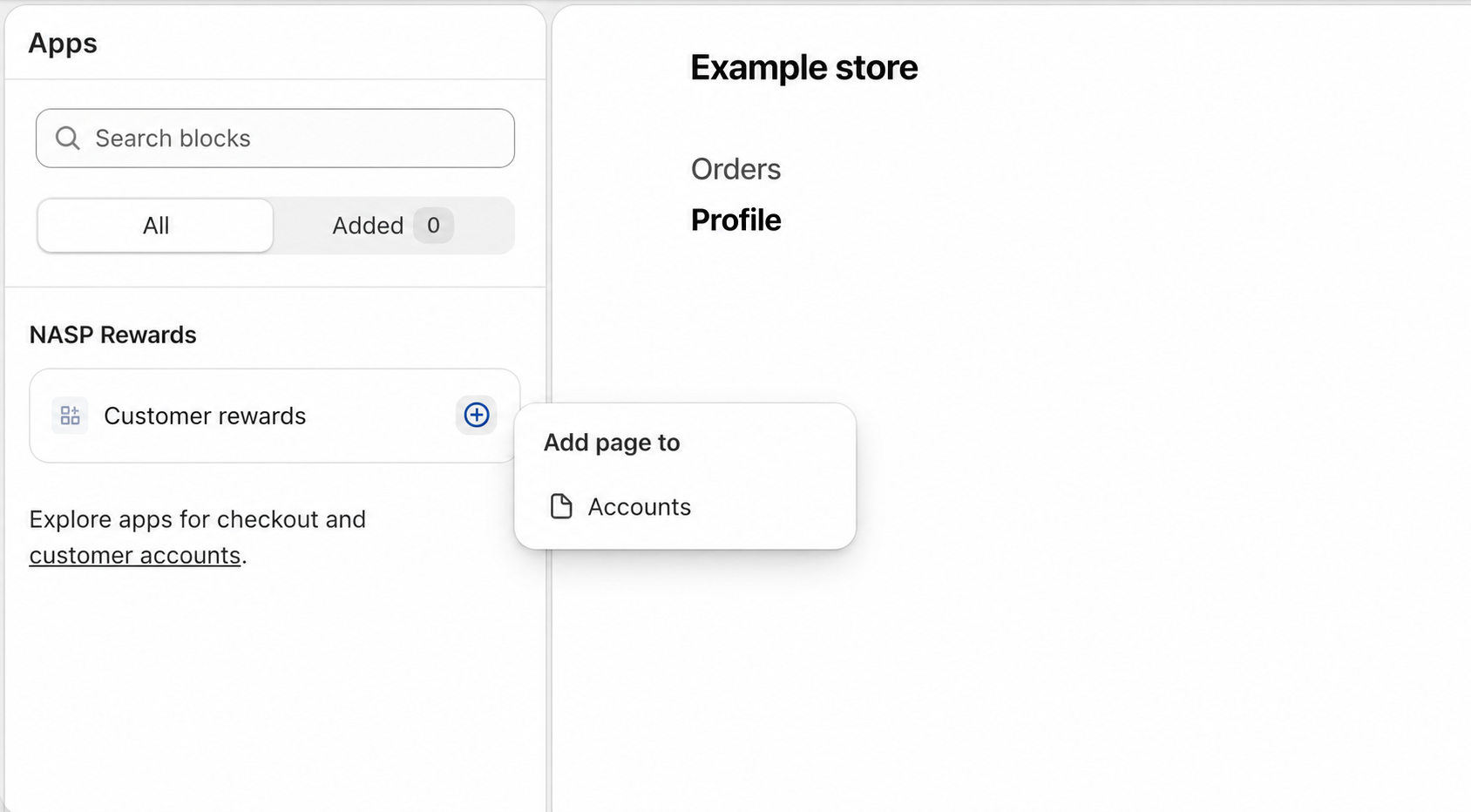
- Open Apps, find NASP Rewards → Customer rewards, and add it to Accounts.
- Save.
Add the menu link
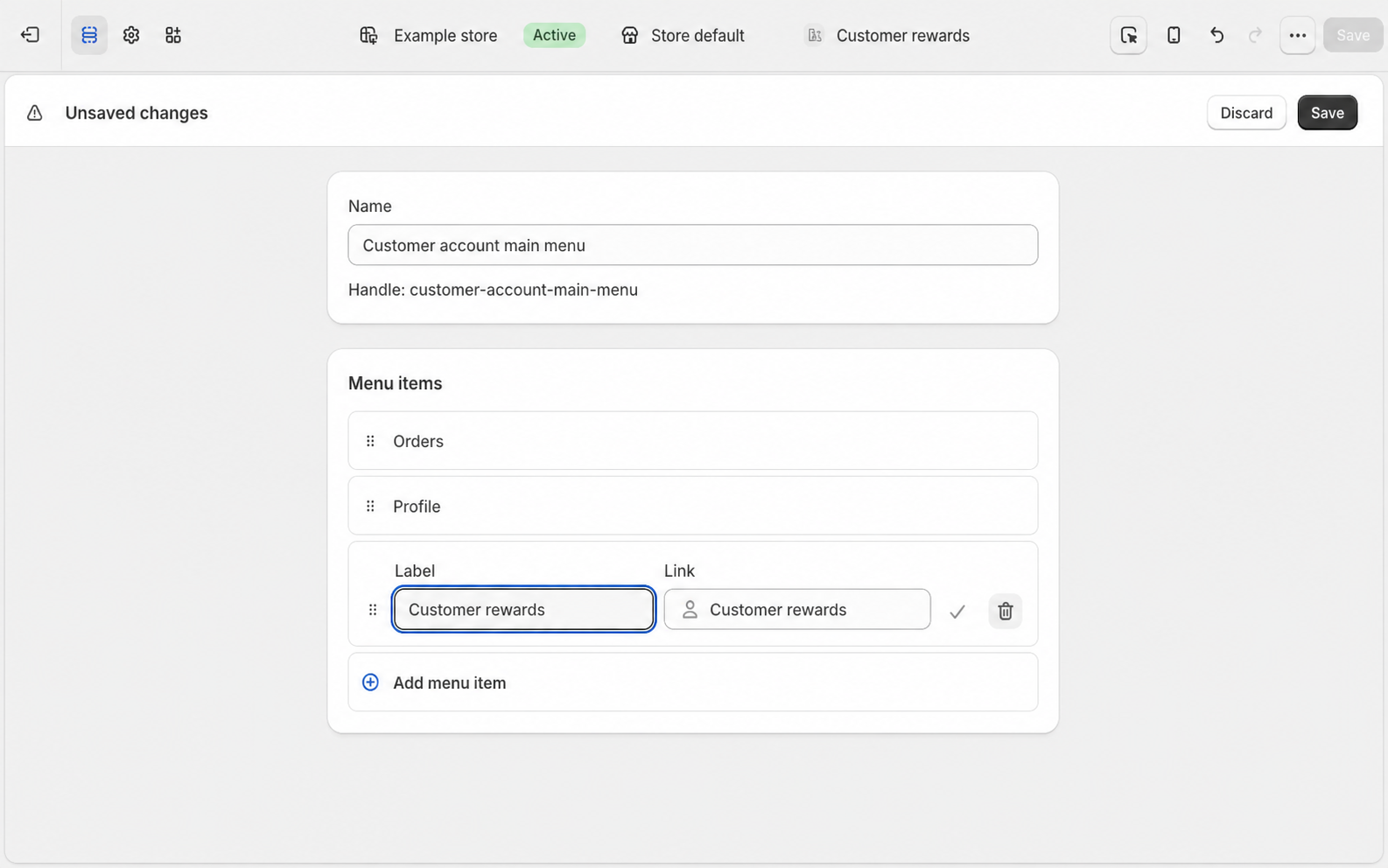
Choose Add to menu → Customer account main menu, enter a label, then save the menu and editor.
If Add to menu is missing, open Content → Menus → Customer account main menu, add an item and select Apps → Customer rewards.
Check the customer experience
Sign in as a customer. Check the balance, eligible activities and rewards. Launched VIP can also show tier and membership details, including while VIP is paused.
Get reward opens a confirmation dialog. Your rewards lists available discount codes; Load more expands it. Full Reward History at the page bottom shows successfully issued rewards, including store credit and used or expired codes. Pending and failed redemptions are excluded. A history entry does not guarantee a code remains usable. Points history shows point movements.
Using each reward
See Earning rules for claimable activities and Refer a friend for invitations and confirmation.
Set up the page and menu for each store. Translations covers multilingual content.